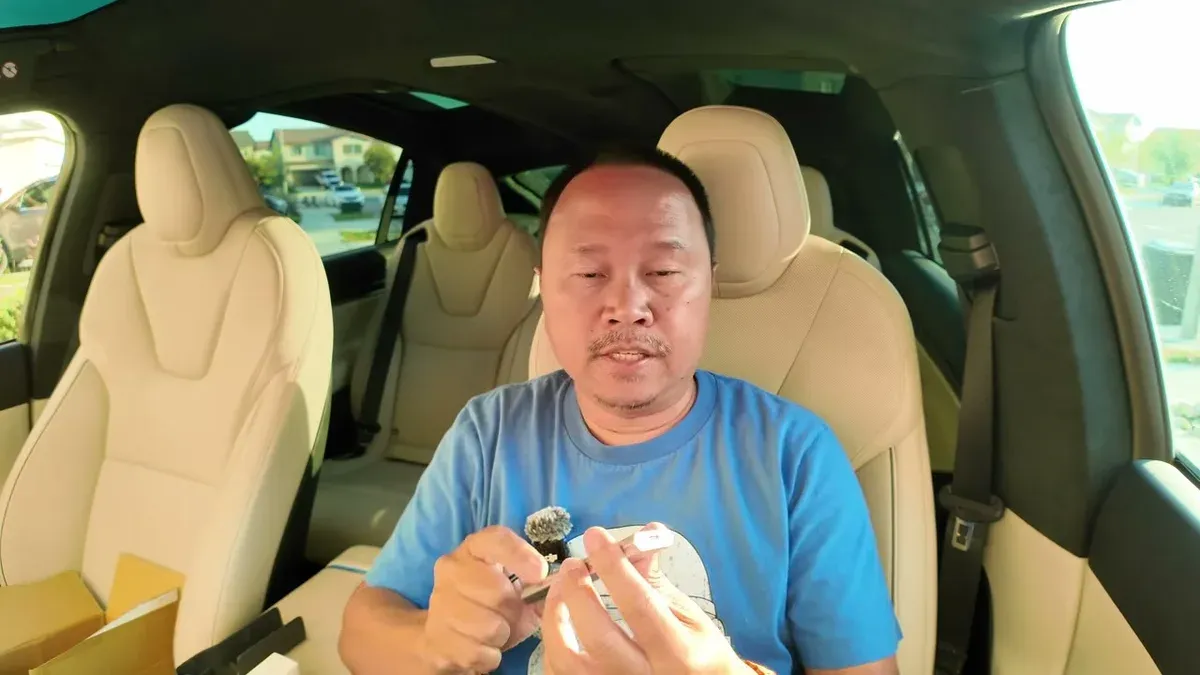
Jowua provided these products at no cost for review. All opinions are my own.
The Model X Plaid has a full Steam library sitting behind the touchscreen and I hadn’t touched it once. Jowua sent over a gaming kit to change that: a one-terabyte NVMe SSD, a USB hub for the glove box, and a multi-device wireless controller. So we set it all up in the Plaid Studios and found out exactly what runs and what doesn’t.
What Jowua Sent
The package had three pieces of hardware doing specific jobs.
The four-port USB dash cam hub plugs into the glove box’s USB-A port and branches out: one spot for the NVMe drive (marked with a camera icon for faster data), and the remaining ports for charging your controller and other devices. Tesla kept the glove box USB-A for some reason, while the rest of the car is all USB-C. It’s a weird choice, but the hub works around it cleanly.
The NVMe drive is one terabyte with a USB-C interface, which is way more headroom than the 128 GB thumb drive that ships with the car. The dual-purpose setup splits that: 64 GB reserved for dash cam, and the rest (878 GB on the partition) for your Steam library. For reference, the stock thumb drive was already 128 GB, so you’re going from that to a massive game partition.
The controller pairs three ways: Bluetooth, a 2.4 GHz RF dongle, or USB-C wired. Feels good in the hand, not too heavy, and it’s rechargeable. For gaming in the car, Bluetooth is the easiest. No extra ports used, no dongles to lose.
Setting Up Steam on the Model X
Formatting the NVMe for Tesla is straightforward. Go into Settings > Safety > Dashcam, and you’ll see the option to format for Steam. It warns you upfront: 64 GB locked for dash cam, rest for the Steam library. Hit format, wait for the spinner, and you’re done.
From there, Steam launches through Arcade > Toy Box > Arcade. It’ll pull any pending updates, worth doing on your home Wi-Fi rather than hotspotting, since those updates eat bandwidth. Then you log into your Steam account and your library shows up.
One thing to know before you get excited: Steam only runs on the front screen. The rear screen shows the Steam logo and nothing else while you’re playing. If you want someone in the back to do anything on their screen, it’s not happening while Steam is running up front.
What Actually Ran
This is where it gets real. I have 163 games in my Steam library. I tried to install Lego Star Wars: The Clone Wars first because I know those Lego games don’t require memorizing complex button combos. It did not work. Kept getting errors. To be fair, the older Lego titles are notoriously buggy even on PC and consoles. Probably the game, not the Tesla.
I pivoted to Capcom Arcade Stadium and got Final Fight running without issues. It’s a retro beat-em-up, not a demanding title, but honestly, it’s one of my favorites. Played it for longer than I probably should have. The “Great on Deck” filter in Steam is a decent starting point for what’s likely to run well; the Model X runs on basically the same hardware as the Steam Deck.
Pairing the Controller
Bluetooth pairing is easy. Hold the sync button on top of the controller, and it shows up in the Tesla’s Bluetooth menu as “Pro Controller.” Tap it, it vibrates, and you’re in.
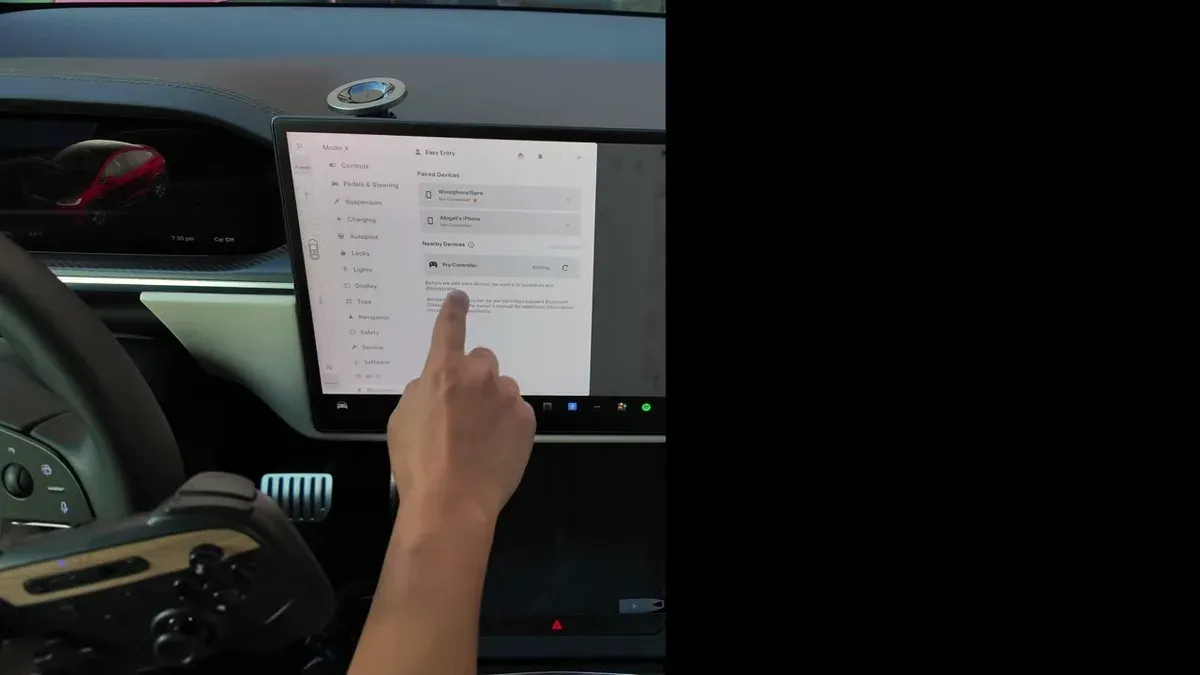
If you’d rather go wired, use USB-C to USB-C. Every charge port in the cabin is USB-C except the glove box. That means you can tuck a cable into the center console and keep the controller topped off without thinking about it. Skip the USB-C to USB-A cable that comes in the box; you’ve got better options in the car already.
The Rear Screen’s Gaming Options
I also tested the rear screen setup, and this one is completely separate from Steam.
The rear has its own arcade with preinstalled titles: Castle Doombad, Beach Buggy, Skyforce Reloaded, Vampire Savior, Fallout Shelter, Cat Quest, Stardew Valley, Cuphead, Backgammon, Chess, and 2048. The Jowua controller works here too. Vampire Savior is actually way more fun than I expected. I was terrible at it, but I kept playing.
The rear screen games are independent of whatever’s running up front. So a passenger can be on Vampire Savior while you’re doing something else on the main screen. That’s the setup if you’ve got kids in the back at a Supercharger.
The Problem Nobody Told Me About
I thought I was going to set this up, test it briefly, and move on. That’s not what happened. Valve’s own “Verified on Deck” badge system is worth checking before you commit to downloading a big game. It maps directly to what’ll run well on the Tesla hardware. I played Final Fight for way too long. Then I played Vampire Savior in the back. Then I realized I hadn’t run any of the errands I was supposed to do while charging.
Abby’s going to be driving more on road trips. I’m calling it now.
If you’ve set up Steam in your Tesla or tried the Jowua gaming kit, I’d love to know what’s actually running for you. Drop it in the comments.
For more on the Jowua lineup, I’ve also reviewed their Model Y Juniper combo pack and Juniper accessories if that’s more relevant to your setup.
Leave a comment
Comments come straight to me rather than posting publicly, and I read every one. Your email is never published.